
Brand modules
A brand's Modules section sets "Custom modules for this brand": "Facilities under this brand get the modules below instead of the organisation defaults, unless a facility has its own." Use it when one brand needs a different set of modules from the rest of your organisation, for example a brand of unstaffed sites that doesn't use Audio Control, or a brand of clinics that doesn't need Display Screens.
Quick reference
Where to find it: Settings (cog icon) → Organisation Settings → Brands & Customisation → a brand → Modules
Who can access: Organisation admins
Purpose: Choose the modules available at the facilities under a brand
How the order works
The modules available at a facility are decided in this order:
- Organisation: the modules turned on in Modules.
- Brand: the brand's custom modules, if it has them.
- Facility: the facility's own modules, if it has them. See Facility settings & modules.
A breadcrumb at the top of the section shows Organisation → Brand. For example, if the Lower Manhattan facility blocks Holiday Management in its own modules, Holiday Management isn't available while Lower Manhattan is selected, even though the organisation and its brand allow it.
Choose how the list is read
| Option | What it means |
|---|---|
| Only selected modules | "Only the modules you tick are available. New modules Performance Hub releases are not added automatically." |
| All modules except | "Every module is available except the ones you block, including new modules as they are released." |
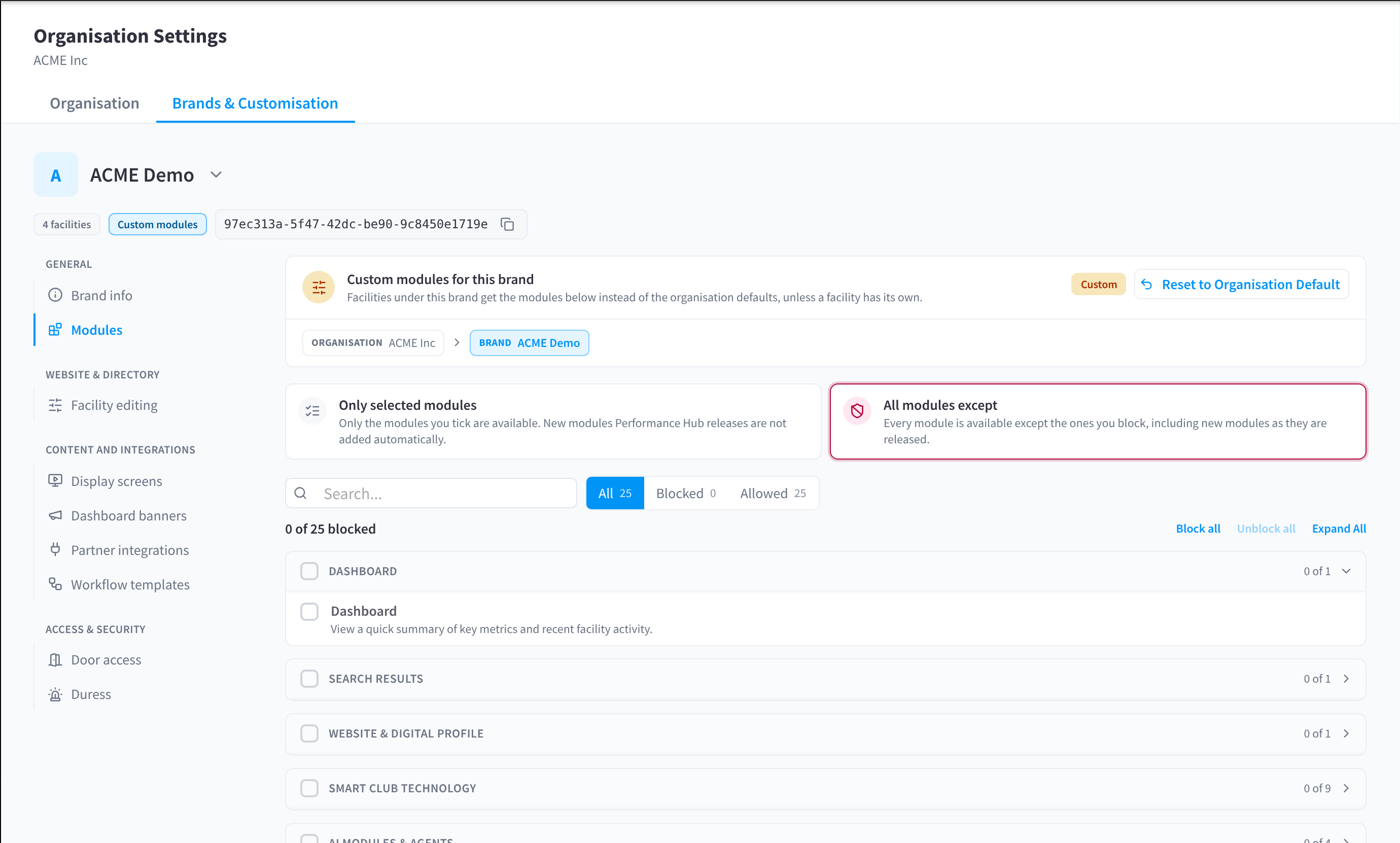
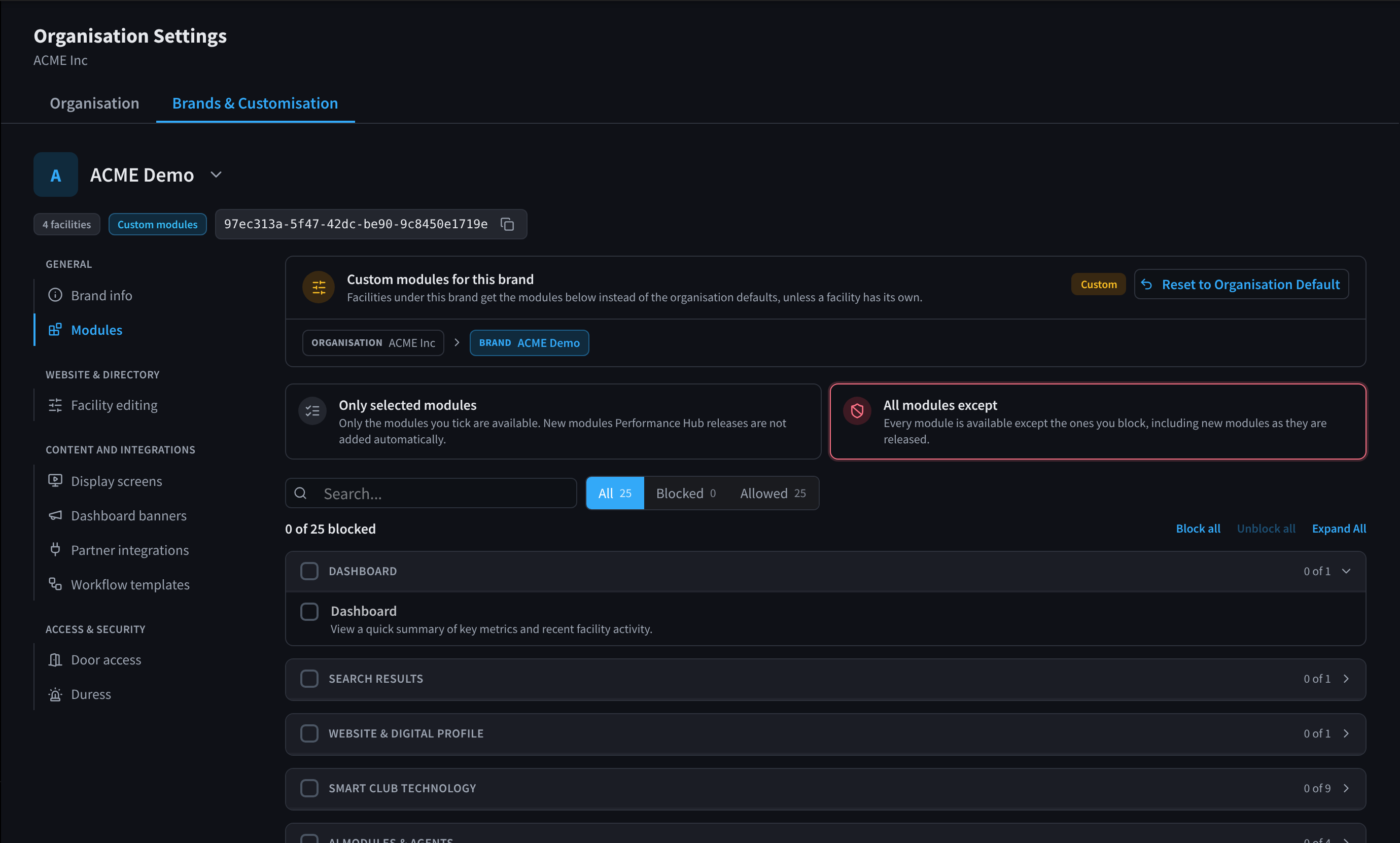
Figure 1: Custom modules for a brand
Block or allow modules
- With Only selected modules, tick the modules to allow. With All modules except, tick the modules to block. The list is grouped by category, such as Dashboard, Website & Digital Profile and Smart Club Technology.
- Use All, Blocked and Allowed to show only some modules, or type in Search to find one.
- Block all and Unblock all change every module at once.
- The count above the list shows how many modules are blocked, for example "0 of 25 blocked".
Go back to the organisation defaults
Click Reset to Organisation Default. The brand's facilities then get the organisation's modules again.
Related pages
- Modules: your organisation's modules
- Facility settings & modules: a facility's own modules
- Access scope & module access: the modules a role gives
- Modules in Getting started: what decides the modules you see