
Brand content & integrations
These brand sections control what facility users can edit, what the brand's display screens show while they start up, the banners on the main dashboard, the brand's partner connections and its workflow templates. Each applies to every facility under the brand, so a café brand, a chain of stores or a group of gyms can keep its facilities consistent.
Quick reference
Where to find it: Settings (cog icon) → Organisation Settings → Brands & Customisation → a brand → Facility editing, Display screens, Dashboard banners, Partner integrations or Workflow templates
Who can access: Organisation admins
Purpose: Set the content and connections shared by every facility under a brand
A section shows only when your organisation has a module that uses it.
Facility editing
Facility editing, in the Website & directory group, sets "What facilities can edit": "Choose which settings facility users can edit for their facility. Applies to every facility under this brand."
- Settings for shows which facilities the list applies to. Global defaults means "Every facility under this brand, unless its country has an override."
- Each setting has a switch. For example, Facility Location ("Address and map location.") decides whether facility users can change their facility's address in Facility & System Configuration.
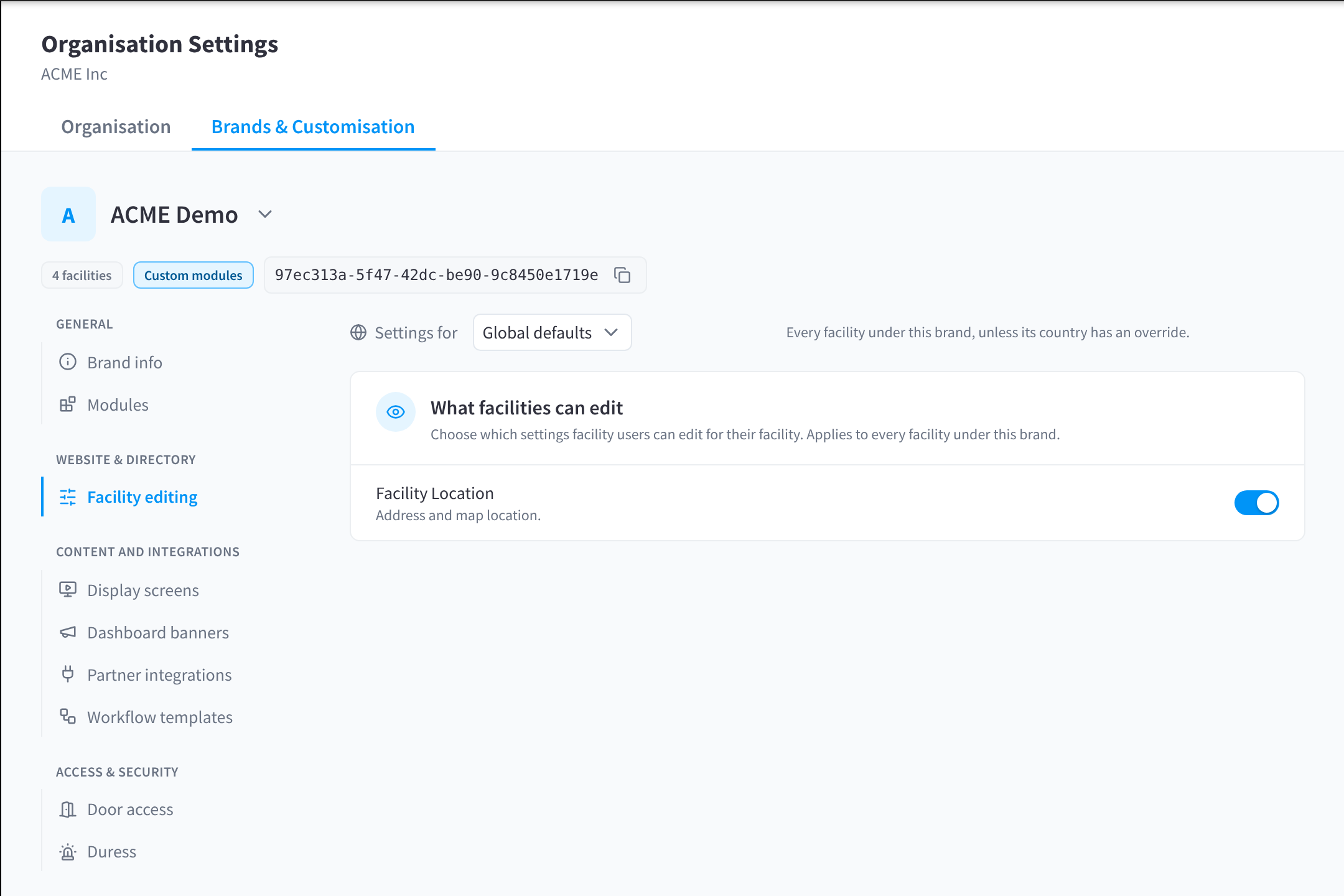
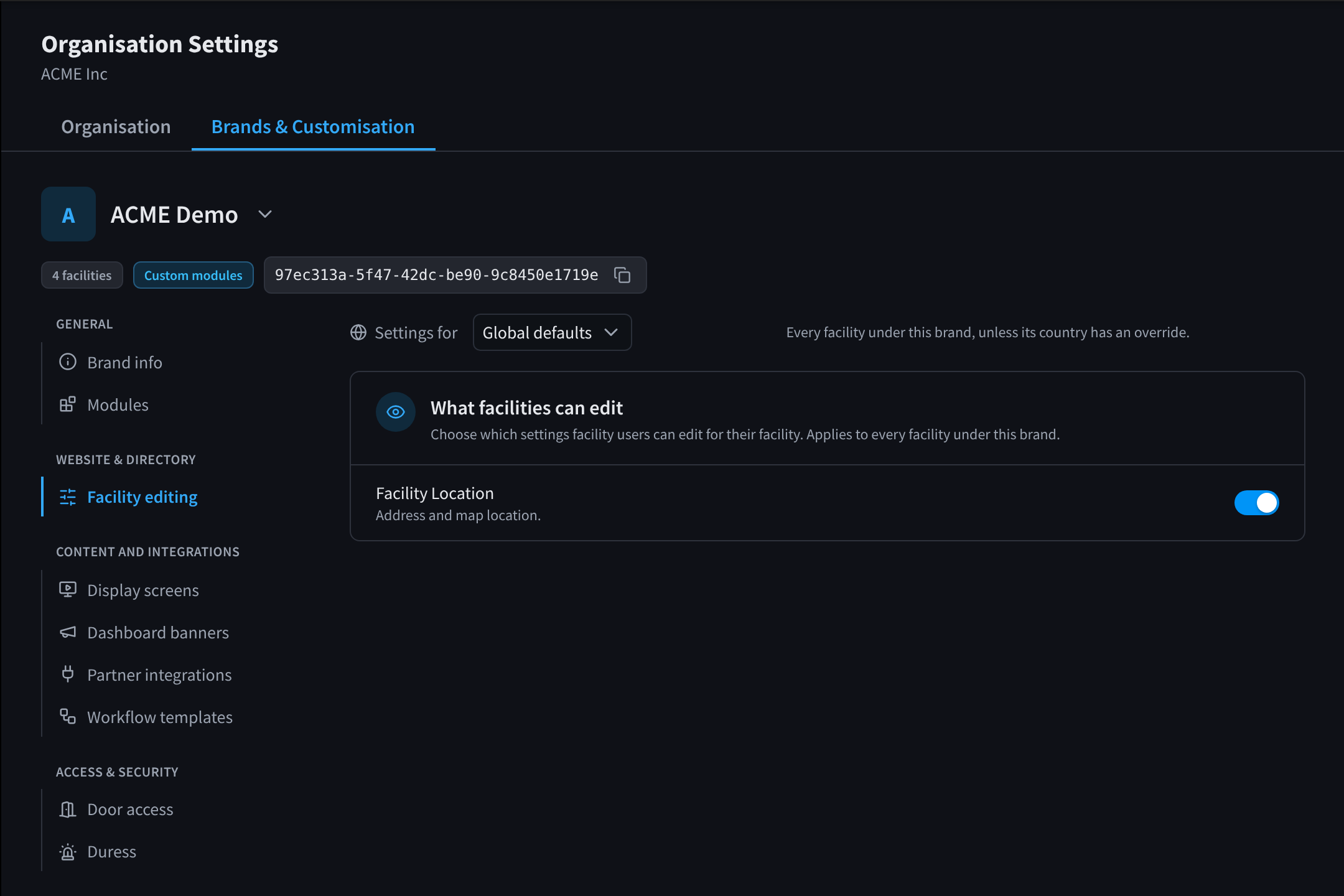
Figure 1: Facility editing: what facility users can edit under this brand
Display screens
Boot screen: "What screens show while they start up or reload. Applies to every facility and region in this brand."
- Upload an image for Landscape screens, Portrait screens or both: "PNG, JPEG or WebP up to 10 MB. A logo on a transparent background works best."
- Click Save boot screen.
"Screens pick up a new boot screen within 30 minutes, or the next time they start." Until you upload one, screens show the Performance Hub default. See Display Screens.
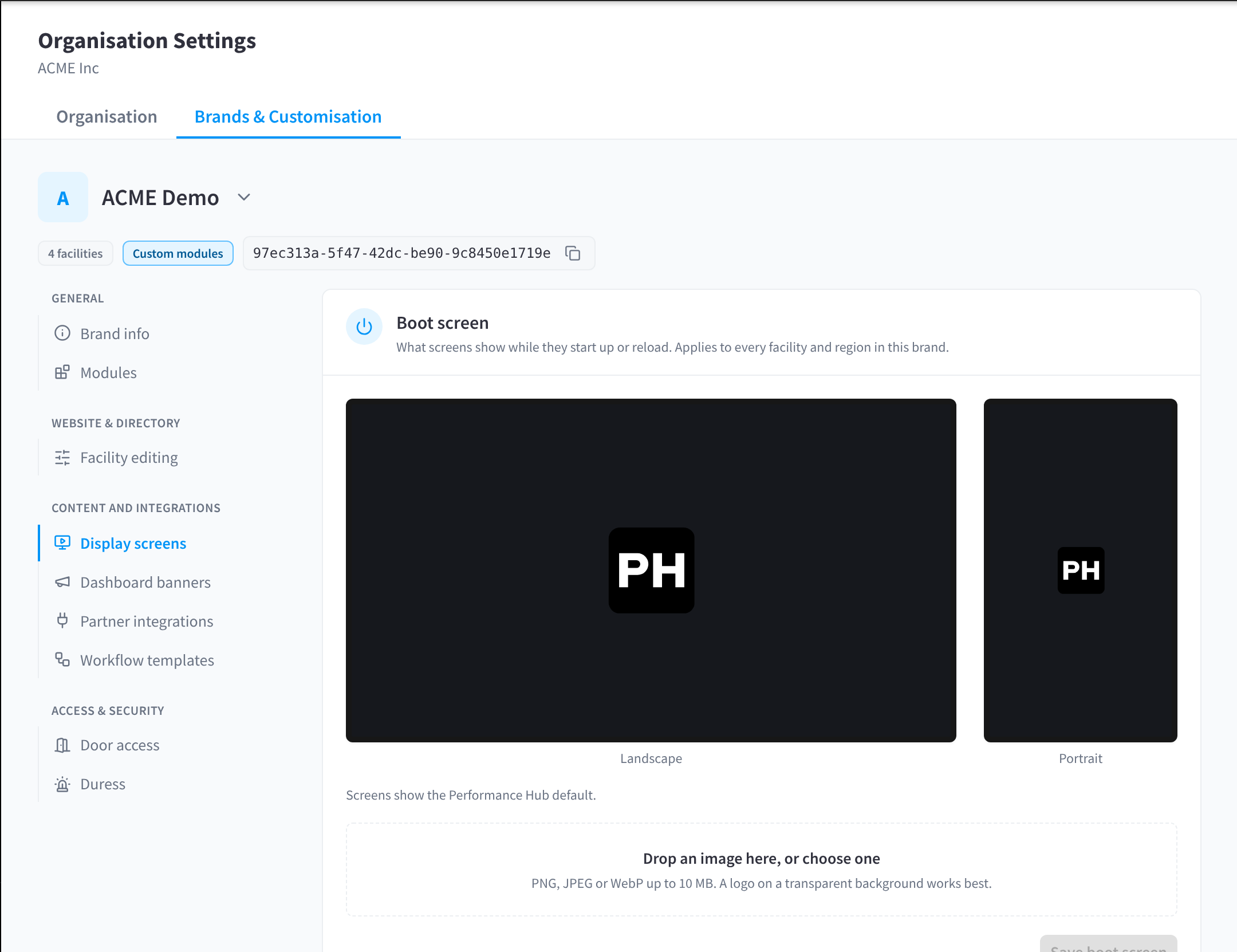
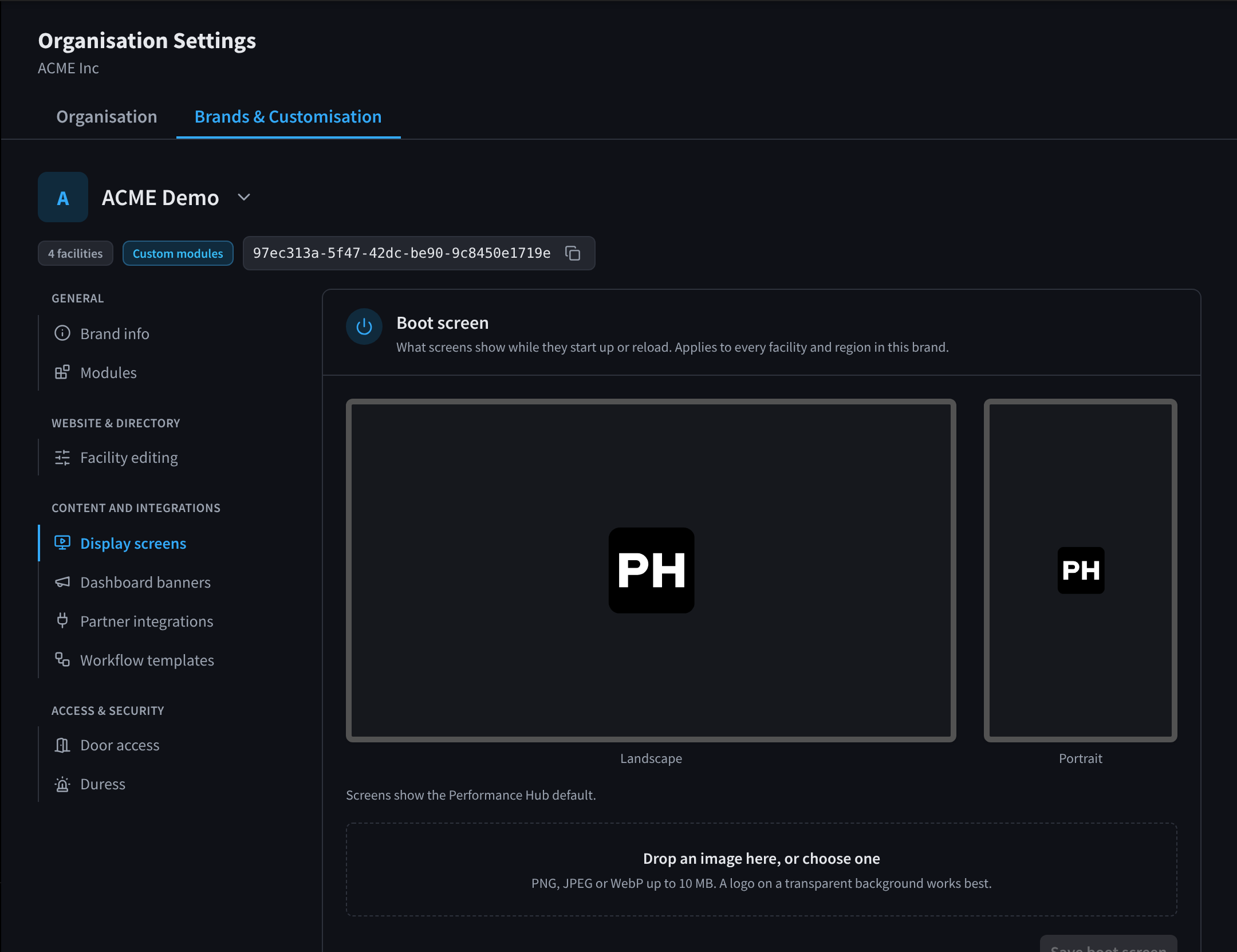
Figure 2: The brand's boot screen for display screens
Dashboard banners
"Messages on the main dashboard for users under this brand. Each banner can run for a date range or until you turn it off, target the whole brand, regions or facilities, and open a popup." Click Add Banner to add one, for example a reminder about a public holiday closure or a new opening.
Partner integrations
Partner integrations lists the brand's connections to partner systems.
Workflow templates
Workflow Templates holds "Templates every facility of this brand can start a workflow from." Click Create template to add one. Use Search, Sort and Category to find a template. A brand with no templates shows "No templates for this brand yet."
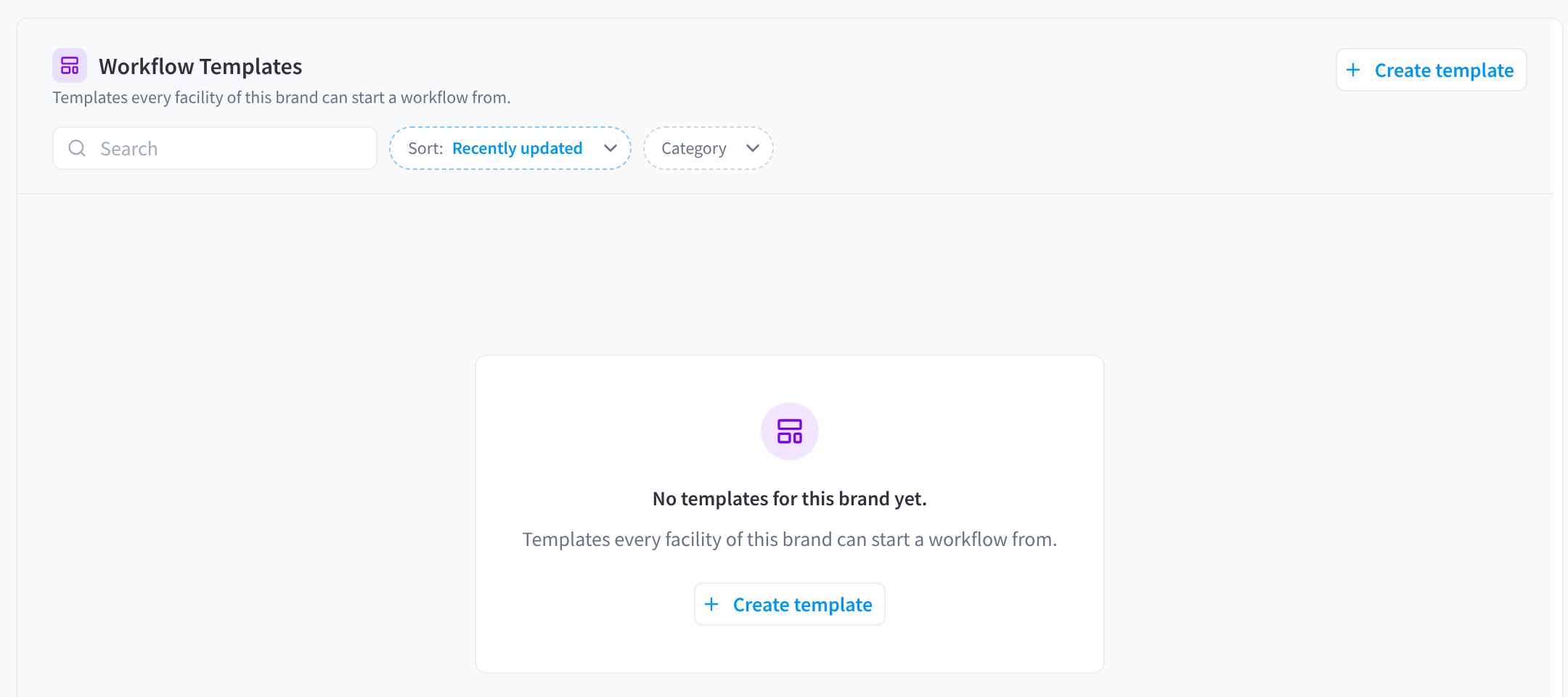
Figure 3: A brand's workflow templates
Related pages
- Brands & Customisation: a brand's other sections
- Display Screens: the screens at your facilities
- Facility location: a facility's address