
Device details
Click any row in the device list to open that device's details in a panel on the right. Edge processors and network cameras have Device Management's own panel, described on this page. Display screens, door and gate controllers, duress buttons and agent processors open the same panel as in their own module.
Quick reference
Where to find it: Device Management → click a device
Who can access: Users with Device Management access at the facility
Purpose: Check one device's health and connection, and change its settings
The device panel
Every device panel has the same frame:
- At the top, the device's name, its ID underneath, and its status pill, such as Online.
- Tabs for the device's details and settings. The tabs depend on the device type.
- Save changes at the bottom. Changes to names, locations and settings apply only when you click it.
Close the panel with the X at the top right.
Edge processor
An edge processor's panel has three tabs: Overview, Configuration and Advanced.
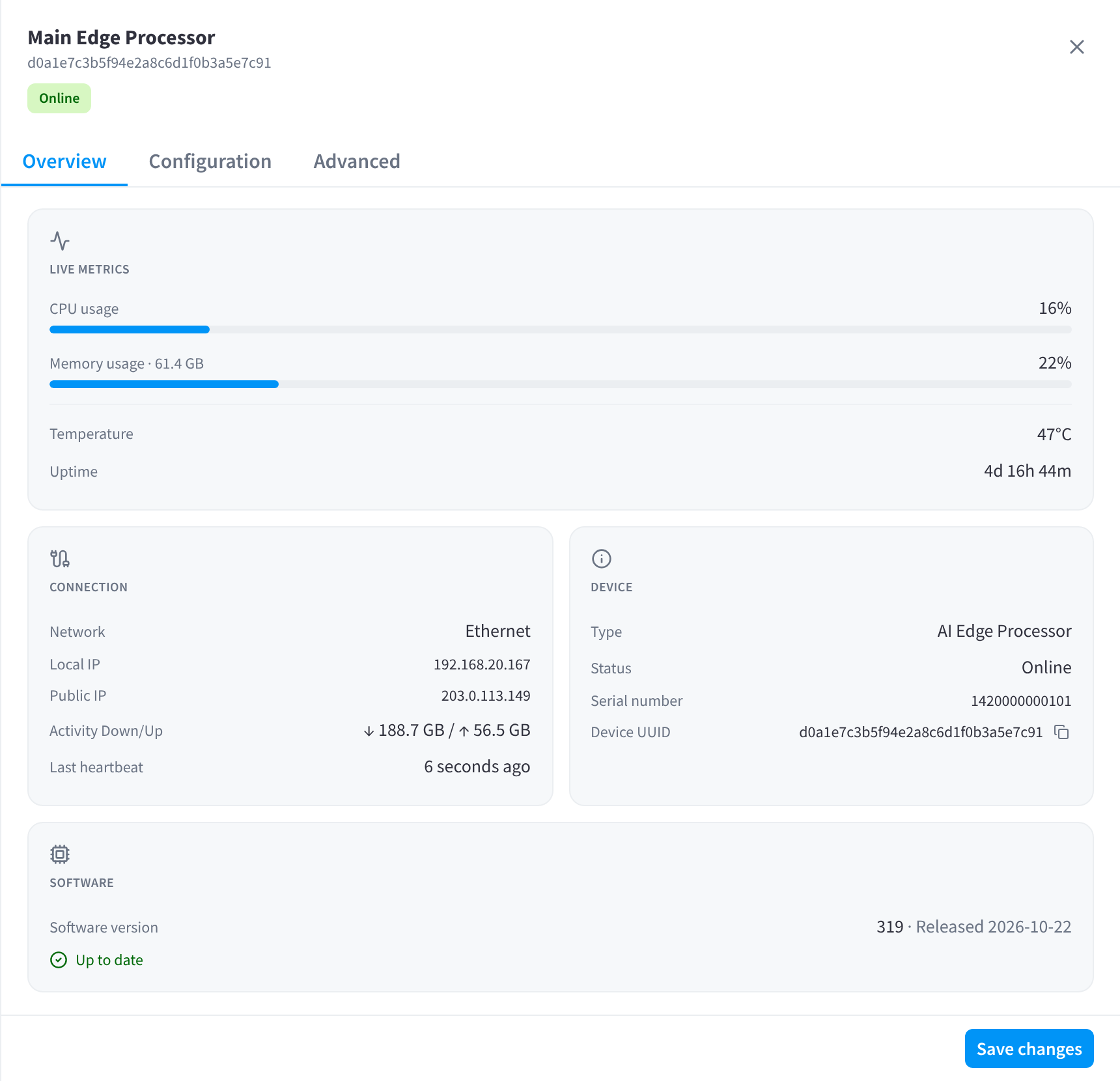
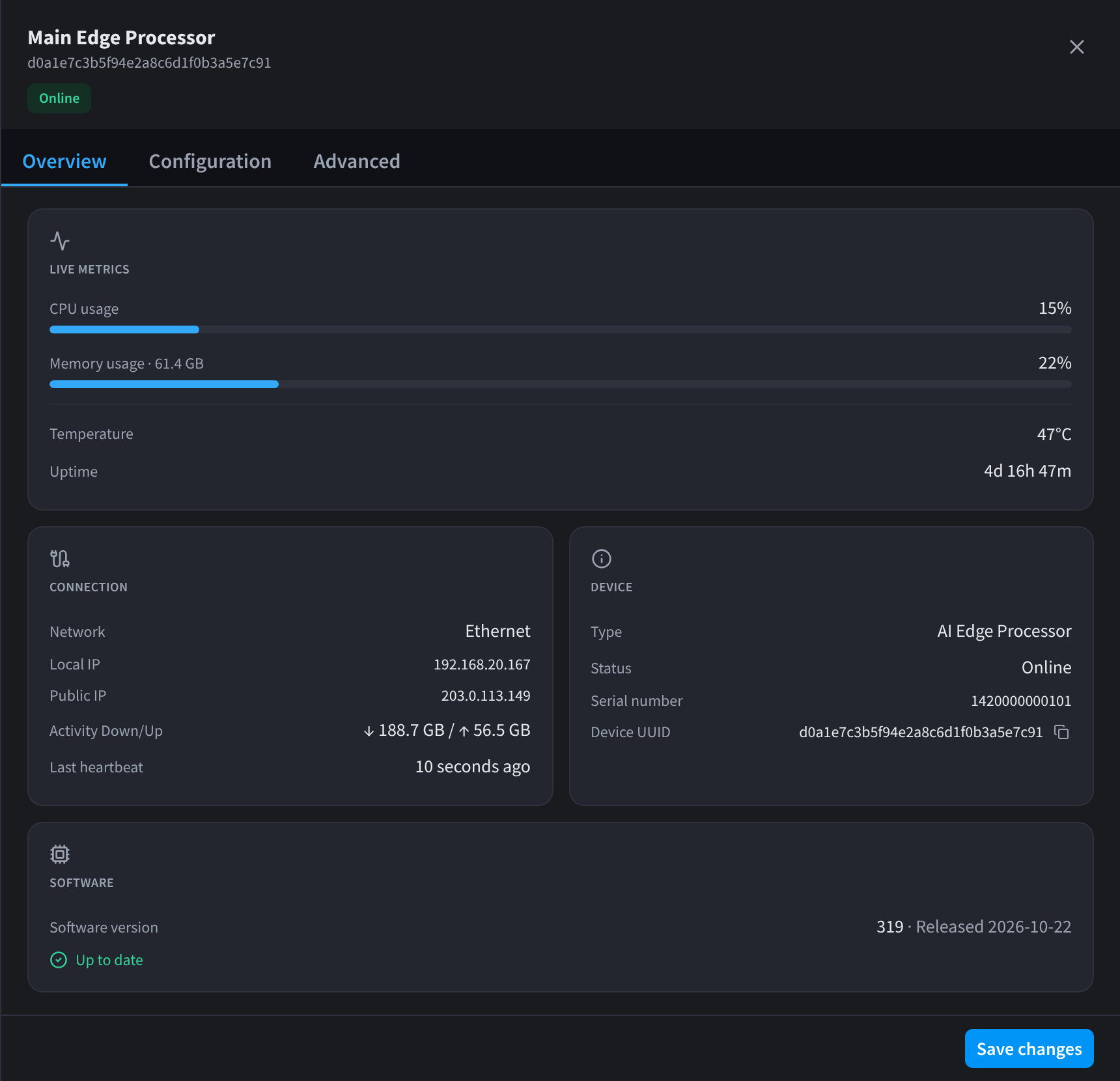
Figure 1: An edge processor's live metrics, connection and device details
Overview tab
| Section | What it shows |
|---|---|
| Live metrics | CPU usage and Memory usage (with the device's total memory), Temperature and Uptime, refreshed automatically. |
| Connection | Network (such as Ethernet), Local IP, Public IP, Activity Down/Up (data received and sent) and Last heartbeat (when the device last reported). |
| Device | Type, Status, Serial number, Model and Device UUID. Click the copy icon next to the UUID to copy it. |
| Software | The Software version and the date it was released, and whether the device is Up to date. |
If an update is waiting, the Software section says so. See Software updates.
Configuration tab
| Setting | What it does |
|---|---|
| Device name | The name shown in the device list and across Performance Hub. Use the location, for example "Warehouse Processor" or "Level 2 Processor". |
| Location | Groups the device with others at the same location in the list and its filters. |
Click Save changes after changing either.
Advanced tab
Reboot, unlock updates, manage Wi-Fi, move or decommission the edge processor. See One device's Advanced tab.
Network camera
A network camera's panel has three tabs: Overview, Configuration and Diagnostics.
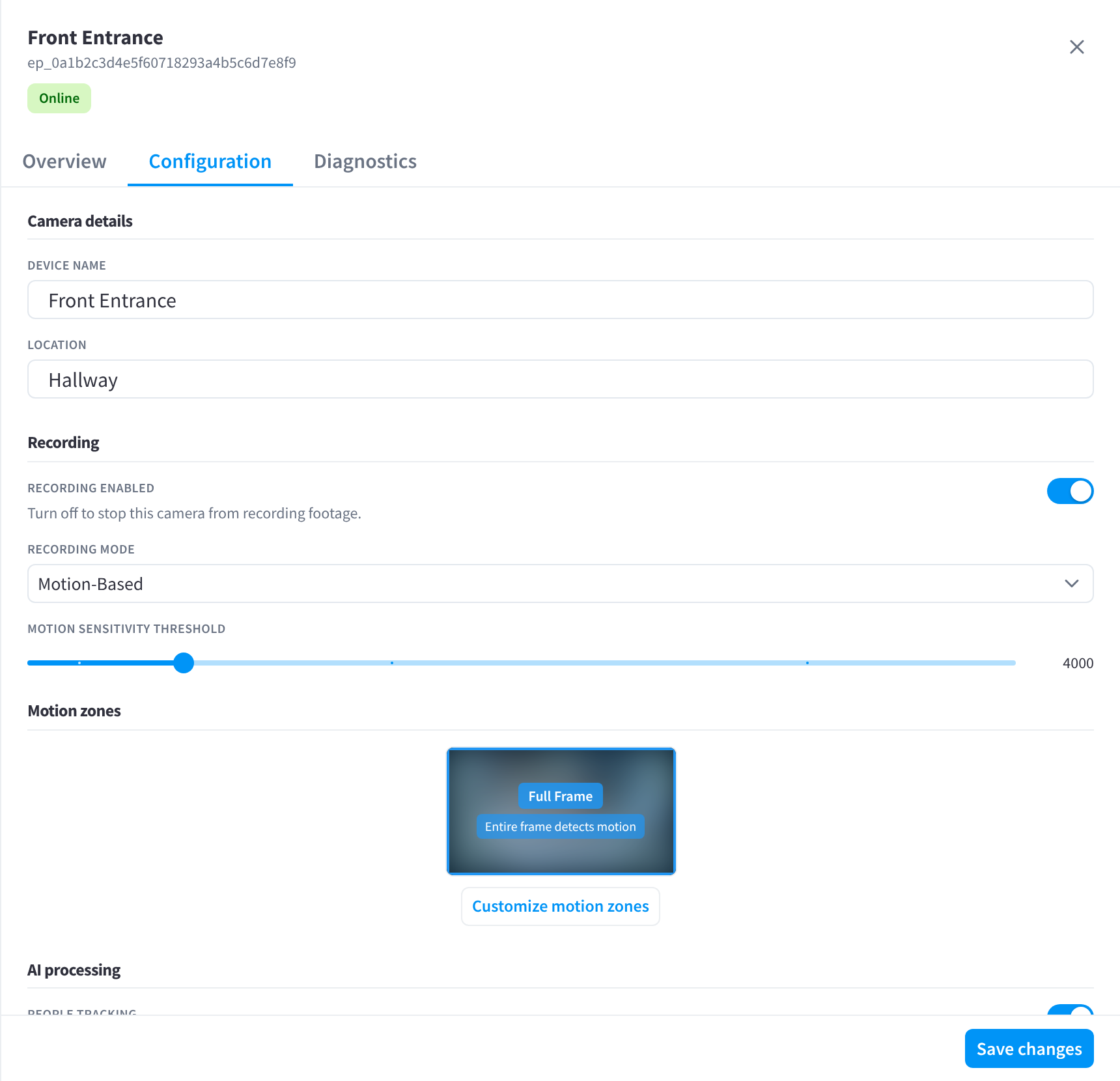
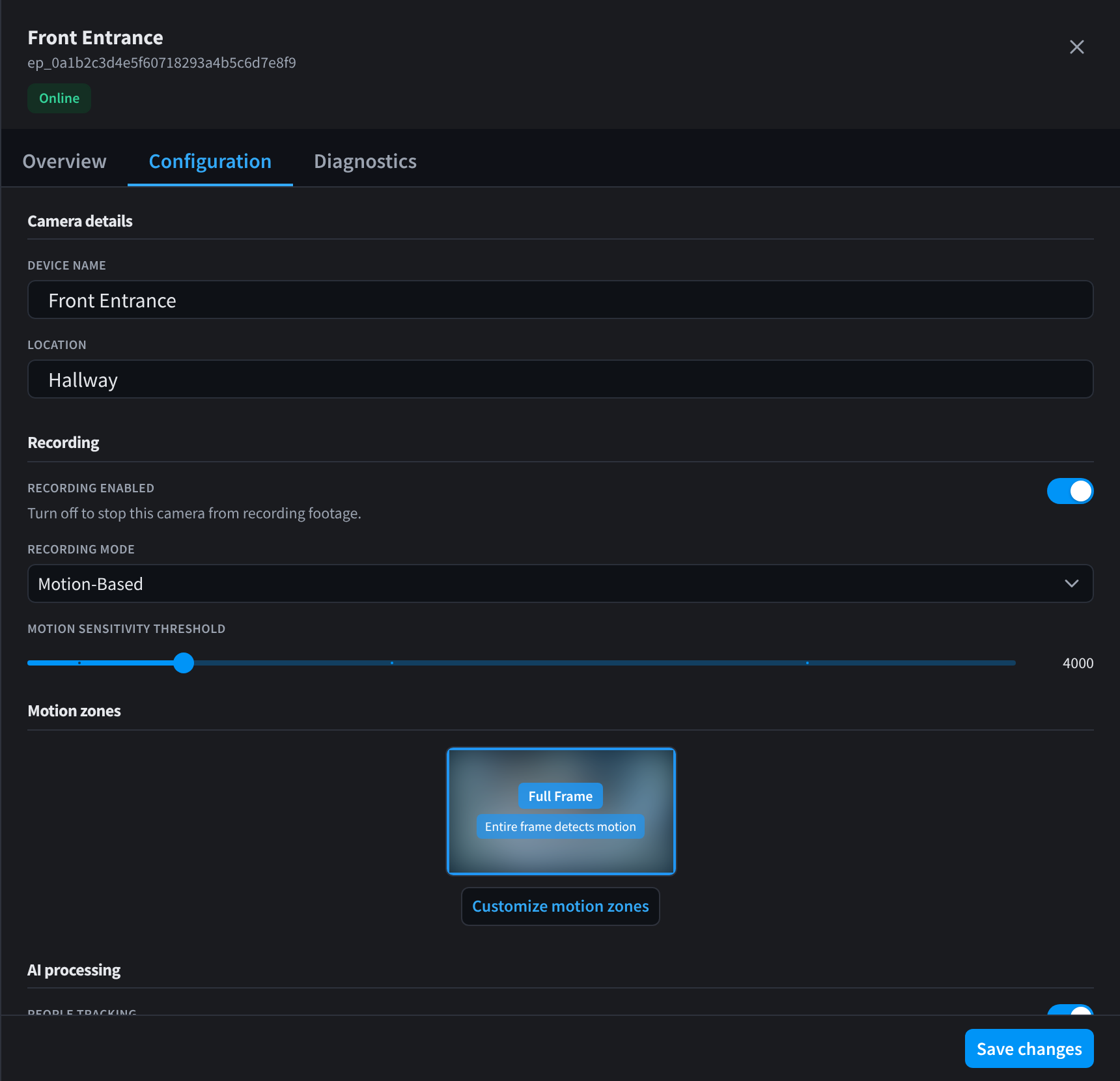
Figure 2: A network camera's name, location, recording and AI settings
Overview tab
A summary of the camera and its connection to its edge processor.
Configuration tab
| Section | Setting | What it does |
|---|---|---|
| Camera details | DEVICE NAME | The camera's name, for example "Loading Dock" or "Waiting Room". |
| Camera details | LOCATION | Groups the camera with others at the same location. |
| Recording | RECORDING ENABLED | Turn off to stop this camera from recording footage. |
| Recording | RECORDING MODE | When the camera records, for example Motion-Based. |
| Recording | MOTION SENSITIVITY THRESHOLD | How much movement starts a motion-based recording. |
| Motion zones | Customize motion zones | By default the whole frame detects motion (Full Frame). Click Customize motion zones to choose the parts of the picture that count, for example a doorway but not a busy street outside. |
| AI processing | AI settings | The camera's AI options, such as people tracking and the AI frame rate. |
Click Save changes to apply your changes.
Diagnostics tab
Test the camera's stream with Run test. See A camera has no picture.
Cloud camera (legacy)
A cloud camera added with Add a Cloud Camera v1 has Overview, Configuration and Advanced tabs, like an edge processor.
Devices with their module's panel
Display screens, door and gate controllers, duress buttons and agent processors open the same panel you get in their own module, so their settings are the same wherever you change them. Their tabs are documented with each module:
| Device | Tabs | Documentation |
|---|---|---|
| Display screen | Overview, Content, Settings, Advanced | Screen overview in Display Screens |
| Door/Gate Controller | Overview, Configuration, Schedule, Access Policies, Geofence | The door detail panel in Door & Gate Access |
| Duress button | Overview, Settings, Button guide, Advanced | A button's details in Duress |
| Agent processor | See the AI Agent docs | Device management in AI Agent |
Related pages
- Device actions: reboot, update, move and decommission devices
- Troubleshooting: high temperature, weak Wi-Fi and cameras with no picture
- Adding network cameras: add cameras to an edge processor
- Recording: recording modes in CCTV / VSaaS