
The device list
The device list shows every device at the facility, one row per device. Search and filter it to find a device, choose which columns it shows, and read each device's status, network and uptime at a glance. Click a row to open the device's details.
Quick reference
Where to find it: Side menu → Device Management
Who can access: Users with Device Management access at the facility
Purpose: Find a device and check its status, network and uptime
The toolbar


Figure 1: Search, filters, Actions and the two add buttons
| Control | What it does |
|---|---|
| Search devices… | Shows only the devices that match what you type, such as part of a device's name. |
| Device count | Shows how many devices match the search and filters, out of the total at the facility. "20 / 20 devices" means all 20 are showing. |
| Actions | Facility-wide actions, such as Export CSV and Reboot all devices. See Device actions. |
| Add Network Camera | Adds one or more RTSP cameras to an edge processor. See Adding network cameras. |
| Add Device | Adds any other device. See Adding devices. |
| Columns (7) | Chooses and reorders the columns. The number is how many are showing. See Choose the columns. |
Filter the list
- Click a filter under the search box.
- Choose a value. The list and the device count update straight away.
- To clear a filter, set it back to All.
| Filter | Options |
|---|---|
| Range | How recently a device was seen: Only Online, This Week, Last 30 days or All. Use All to include devices that haven't reported in for a long time. |
| Status | All, Online, Offline, Pending or Removing. Pending also shows devices that are Initializing or Provisioning, and Offline also shows agent processors whose launch failed. |
| Type | One device type, such as Display Screen, Duress Button or Edge Processor. Type in the box to search the list of types. |
| Location, Network | The locations and networks in use at the facility. Pick one to show only matching devices. |
| Link | How a device connects: All, Ethernet, Wi-Fi or Bluetooth / LoRa. Duress buttons count as Bluetooth / LoRa. Cloud agent processors have no link, so they only appear with All. |
| Recording | All, On or Off: network and cloud cameras with recording turned on or off. An edge processor stays in the list when any of its cameras match. |
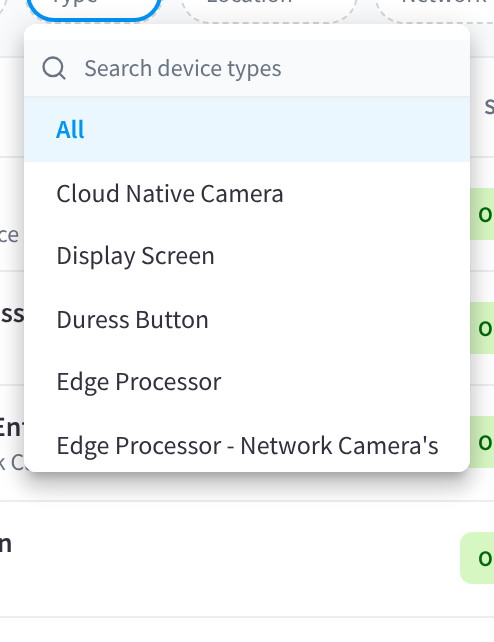
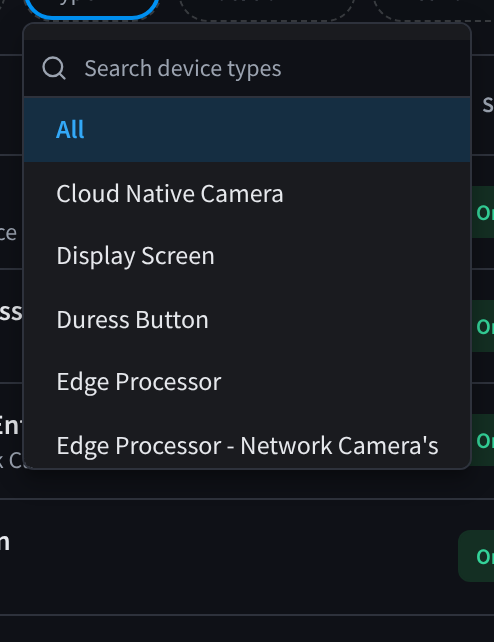
Figure 2: Filter the list by device type
Choose the columns
The list shows seven columns by default: DEVICE, STATUS, PREVIEW, LOCAL IP, NETWORK, UPTIME and SERIAL NUMBER.
- Click Columns (7).
- Tick a column to show it, or clear it to hide it. Device is always shown and can't be cleared.
- Drag a column by its handle to change its place in the list.
Other columns you can add include Location, Model, Public IP, Activity Down/Up, CPU %, Memory %, Storage / Disk and Temperature.
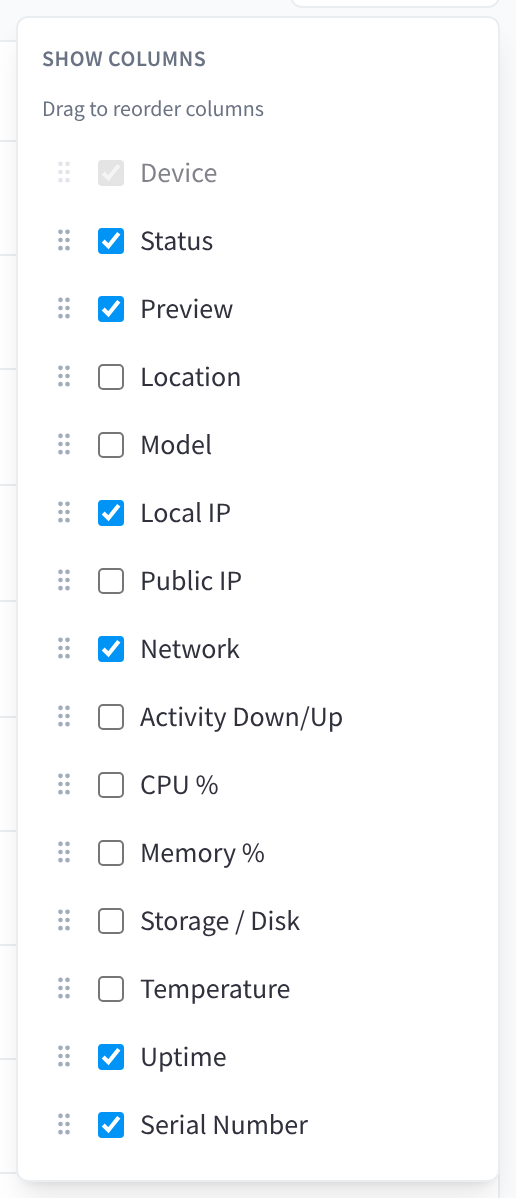
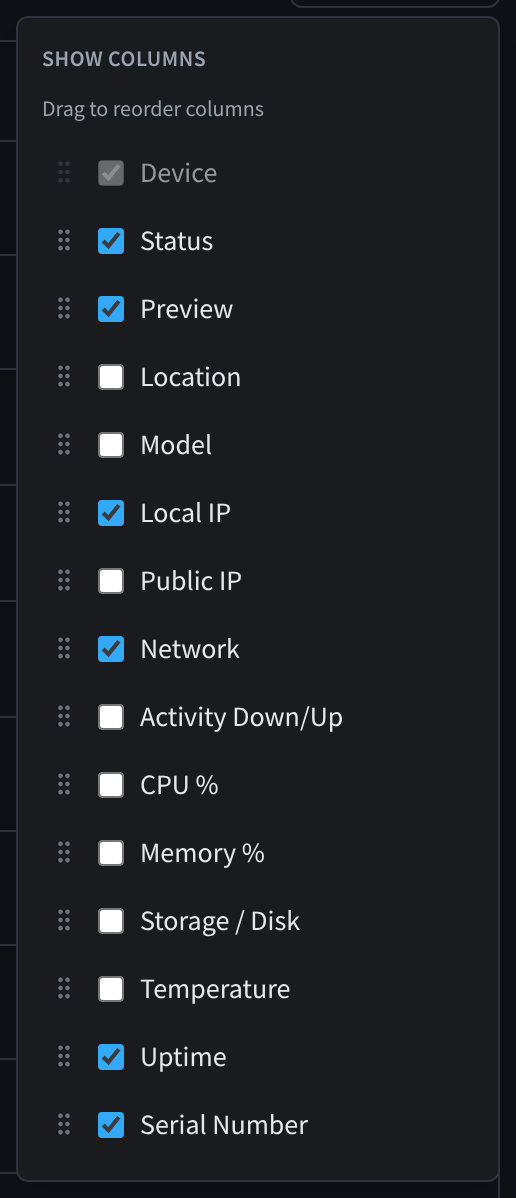
Figure 3: Choose and reorder the columns
Sort the list
Click a column header, such as DEVICE, STATUS or UPTIME, to sort by it. Click it again to reverse the order.
Reading a row
| Part of the row | What it shows |
|---|---|
| DEVICE | The device's name, with its type and location underneath, for example "Door/Gate Controller · Roller Door". An edge processor's row says "AI Edge Processor": that's the Edge Processor type. |
| STATUS | The device's status pill. See Status. |
| PREVIEW | A camera's latest frame, or what a display screen is showing. |
| LOCAL IP | The device's address on your local network. |
| NETWORK | How the device connects: Ethernet, or the Wi-Fi network's name and its signal strength as a percentage. Duress buttons show Bluetooth / LoRa. |
| UPTIME | How long the device has been running since it last started. Duress buttons show when they last reported instead, for example "Updated 3 minutes ago". |
| SERIAL NUMBER | The serial number printed on the device's label. |
Network cameras appear indented under the edge processor that runs them. Offline devices are dimmed, and show Last seen with how long ago they last reported, in place of their uptime.
Status
| Status | What it means |
|---|---|
| Online | The device is connected and reporting. |
| Offline | The device hasn't reported recently. Check its power and network. See A device shows Offline. |
| Pending | The device has been added, and Performance Hub is waiting for it to come online and finish setting up. |
| Initializing | A network camera's stream is starting. |
| Provisioning | The device is downloading its settings after being added. This can take several minutes and isn't a fault. |
| Removing… | The device is being removed from the facility. |
| Launch failed | A cloud agent processor couldn't be launched. See Device management in the AI Agent docs, or contact Support. |
Site internet speed
The strip above the list shows the site's internet speed from the most recent test: download, upload and latency. On the right, it shows how long ago the test ran and which device ran it.


Figure 4: The site internet speed, from the most recent test
The test measures download and upload speed against the nearest speedtest.net server, from the device that ran it. Treat the result as a rough guide to the site's connection: it depends on which device ran the test and how that device is connected, so a test from another device can give a different result. Devices at the site run the test automatically every few hours: edge processors, and the display screen acting as the master clock. It doesn't run in your browser or measure your own connection. The strip only appears when the latest test is recent.
Upload speed matters as much as download. Performance Hub is a SaaS platform, so devices at the site send their data to the cloud over the site's internet connection. Some services need considerable upload bandwidth, especially video surveillance as a service (CCTV / VSaaS), where the upload needed depends on how many cameras are connected. With continuous recording, allow roughly 4 Mbps of upload per 1080p camera (H.264), multiplied by the number of cameras. See Internet upload for continuous recording for other resolutions.
If many devices go offline at once, check this strip first. A slow or missing result points to the site's internet connection rather than the devices. See Many devices are offline at once.
Related pages
- Device details: open a device to see its metrics and settings
- Device actions: export the list, reboot and update devices
- Troubleshooting: offline devices, weak Wi-Fi and other problems
- Common questions: dimmed rows, indented cameras and more