
Adding network cameras
Add Network Camera adds your existing IP cameras to an edge processor, which records them and runs AI on their video. Add one camera, or up to 25 in one batch, by giving each camera's RTSP stream URL, a name and a location. Test each stream before you add it.
Quick reference
Where to find it: Device Management → Add Network Camera
Who can access: Users with Device Management access at the facility
Purpose: Connect existing RTSP cameras to an edge processor
Before you start
- The edge processor must be added and online. See Adding devices.
- The cameras must be reachable from the edge processor on your local network.
- Give each camera a static IP address or a DHCP reservation first. The stream URL includes the camera's IP address. If the address changes later, the URL stops working and the camera's video disappears from the edge processor until you update it.
- Have each camera's stream URL ready, with its username and password. If you don't know it, see the camera database.
Add cameras
- In Device Management, click Add Network Camera. The Add network cameras dialog opens.
- Under EDGE PROCESSOR, choose the edge processor that will run the cameras.
- For the first camera, fill in:
- STREAM URL: the camera's RTSP address, in the form
rtsp://<user>:<password>@192.168.20.60:554/stream1. If you're unsure of it, click Find my camera, or follow Browse the camera database. - CAMERA NAME: a name people will recognise, such as "Loading Dock", "Waiting Room" or "Car Park North".
- LOCATION: choose an existing location or type a new one, such as "Warehouse", "Clinic" or "Stockroom".
- Recording & AI settings (optional): click to set the camera's recording and AI options now. You can change them later on the camera's Configuration tab.
- STREAM URL: the camera's RTSP address, in the form
- Click Test on the camera's card. The edge processor connects to the stream and the card shows the result. Until then it shows Not tested.
- To add more cameras in the same batch, click Add another camera and repeat steps 3 and 4. The counter shows how many cameras are in the batch, up to 25.
- Click Test all to test every camera in the batch at once.
- Click Add N cameras, where N is the number of cameras ready to add. The footer shows how many are ready, for example "3/4 ready to add".
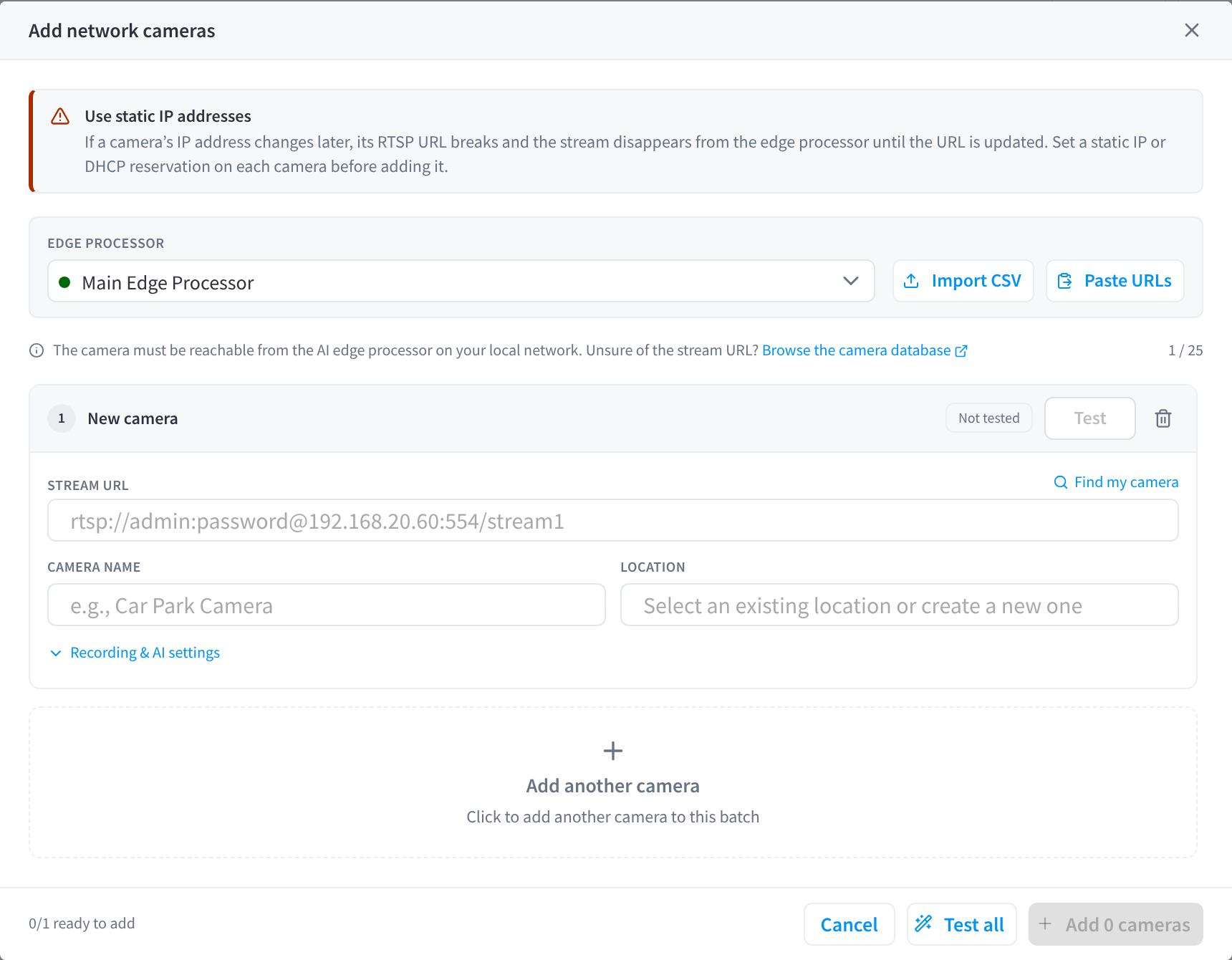
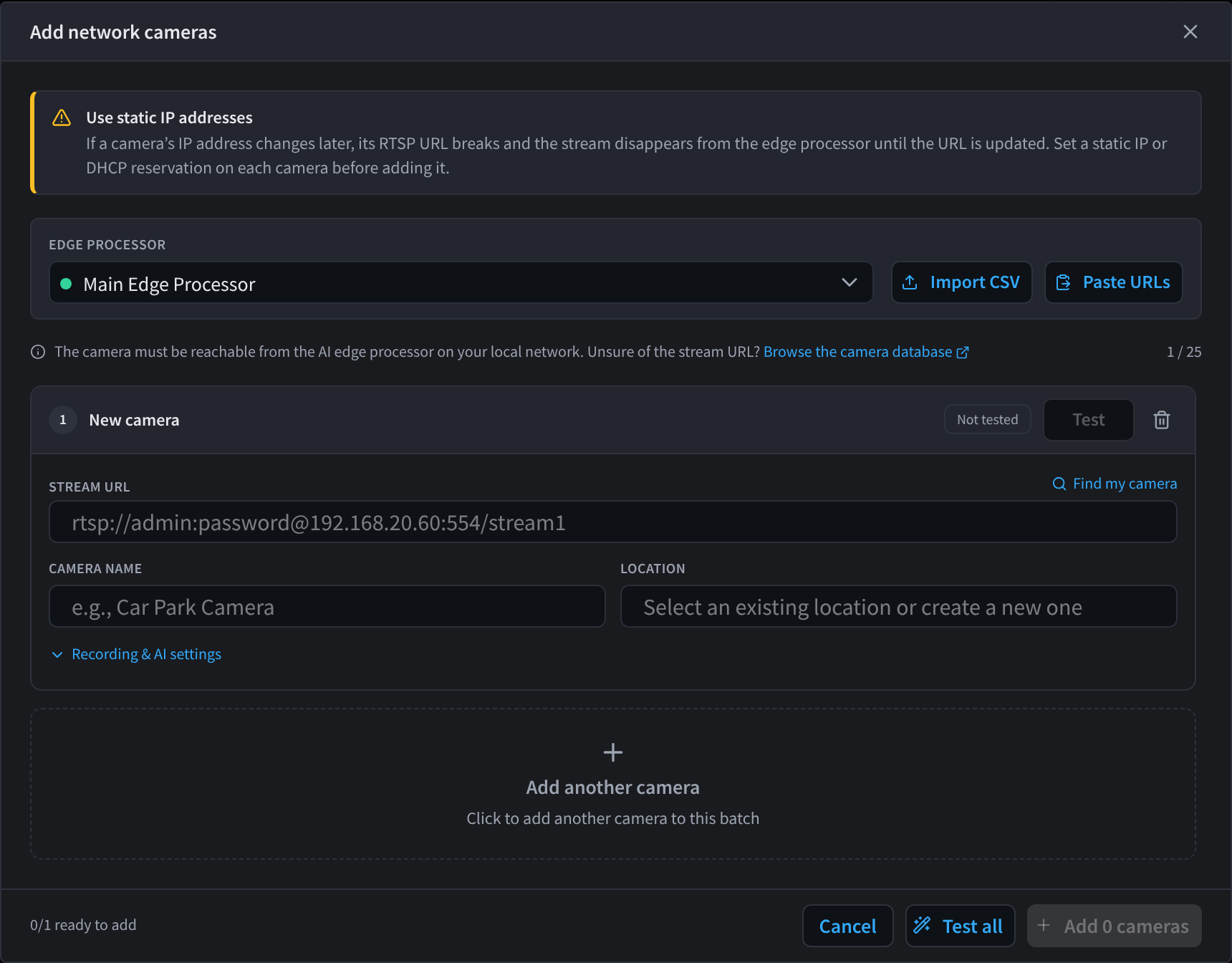
Figure 1: Add one or more RTSP cameras to an edge processor
To remove a camera from the batch before adding it, click the bin icon on its card.
Add many cameras at once
- Import CSV adds cameras to the batch from a CSV file.
- Paste URLs adds a camera to the batch for each stream URL you paste.
Name, locate and test each camera before you click Add N cameras.
Example names and locations
Name cameras for what they show, and use locations to group them, so anyone can find the right camera quickly:
| Site | Camera name | Location |
|---|---|---|
| Warehouse | Loading Dock | Warehouse |
| Medical clinic | Waiting Room | Clinic |
| School | Car Park North | Grounds |
| Retail store | Stockroom Door | Stockroom |
| Gym | Gym Floor East | Gym Floor |
After adding cameras
Each camera appears in the device list, indented under its edge processor. Click a camera to change its settings or test its stream again. See Device details. The cameras also appear in CCTV / VSaaS, where you can watch their live video and recordings.
If a camera has no picture, see A camera has no picture.
Related pages
- Camera database: find the stream URL for your camera model
- Cameras & Devices: camera types and per-camera settings in CCTV / VSaaS
- The Hardware: edge processor models and camera capacity
- Device details: a camera's recording, motion and AI settings