
Payment Settings
Payment Settings is where a facility that pays for itself keeps its cards, its balance and the details printed on its invoices. Set it up once, with a backup card and auto top-up, and a clinic, a café or a venue keeps running without anyone watching the balance.
Quick reference
Where to find it: Settings (cog icon) → Billing & Cost Management → Payment Settings
Who can access: People with the Billing & Cost Management module at a facility that pays for itself. See Who can see it.
Purpose: Keep a payment method on file, keep the balance topped up, and send invoices to the right people
Performance Hub may ask for business details the first time you set up billing.
For a facility your organisation pays for, there's no Payment Settings tab: the organisation's Payment Settings apply instead.
Payment methods
Payment Methods lists the facility's saved cards. One card is marked Primary.
To add a card:
- Click Add Payment Method ("Click here to add a new payment method").
- Follow the prompts.
Add a second card as a backup, so a declined or expired card doesn't interrupt service. With only one card saved, Payment Settings shows "Please add a backup payment method to your facility to ensure uninterrupted service." and the Overview tab shows a No backup payment method chip.
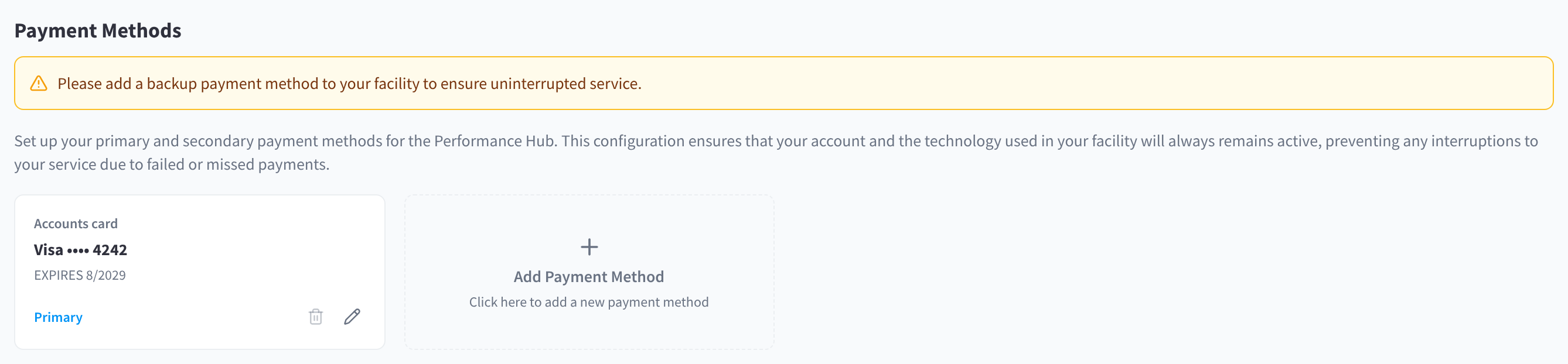
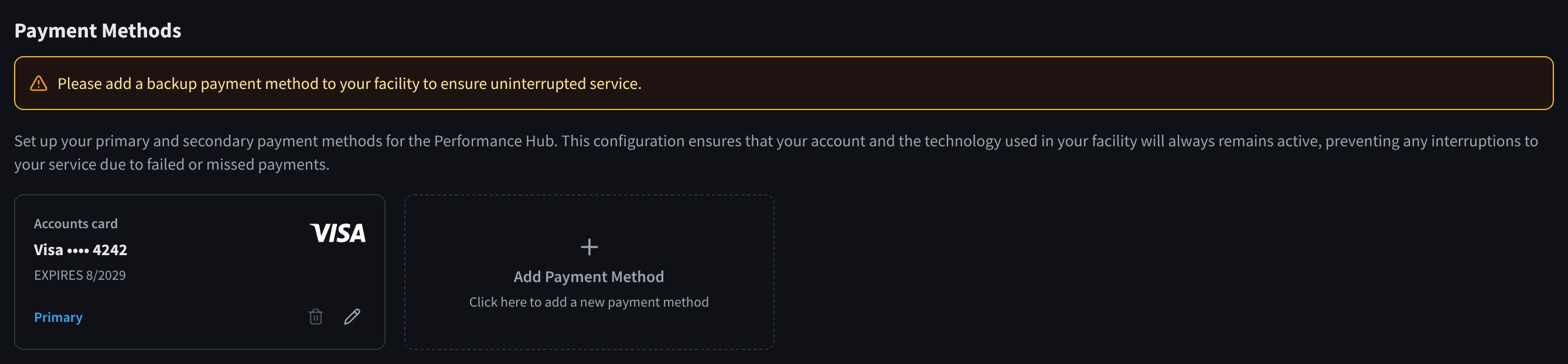
Figure 1: Payment methods, with the reminder to add a backup
Balance & Top-ups
On a prepaid account, usage is deducted from the facility's balance. Balance & Top-ups shows the Available balance, and lets you top up now or automatically.
Top up the balance
- Under Top up balance, choose one of the preset amounts, or type an amount in AMOUNT. "Minimum top-up is $5."
- In PAY WITH, choose the card to charge.
- Click the Top up button, which shows the amount.
The receipt is in Invoices & Receipts. Invoices & receipt history opens it.
Auto top-up
"Automatically charge your stored card when the balance falls below the threshold."
- Turn on Enable auto top-up.
- In WHEN BALANCE IS BELOW, enter the balance that should trigger a top-up.
- In TOP UP BY, enter how much to add each time.
- Click Save changes.
You choose both amounts: pick a threshold that covers a few days of your usage, and a top-up amount that suits how often you want to be charged. View usage deductions shows the usage taken from the balance, on the Cost Breakdown tab.
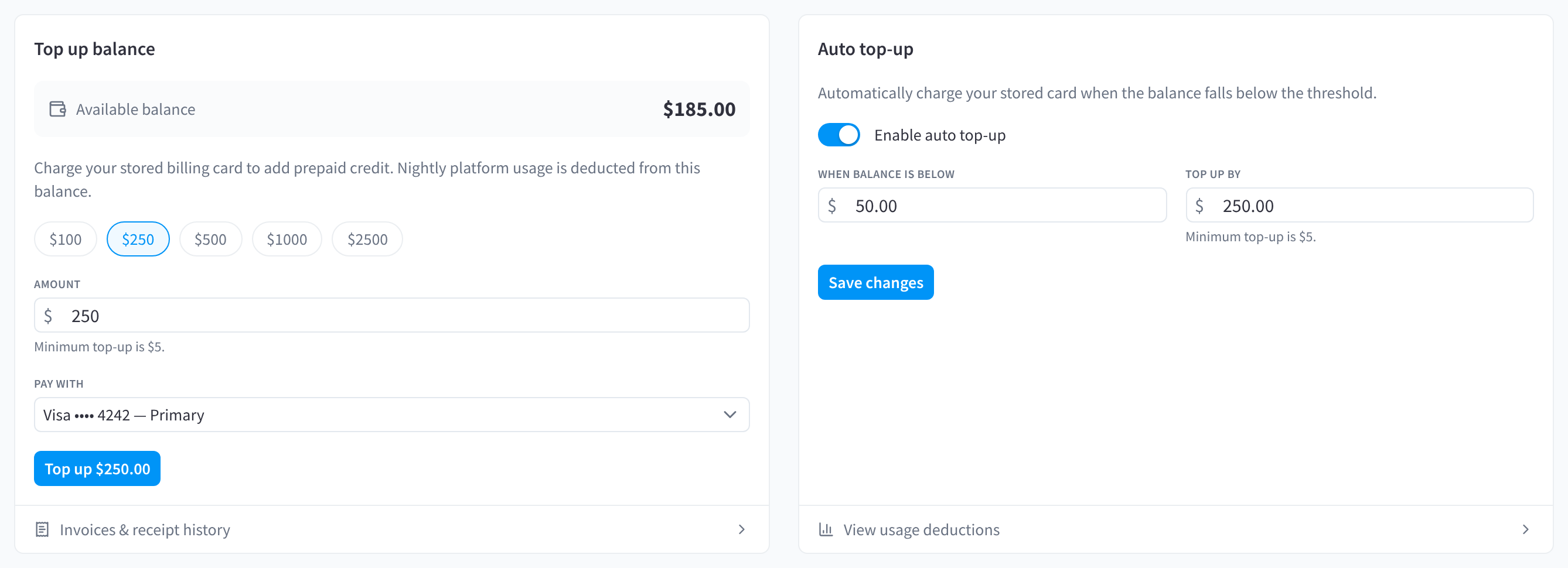
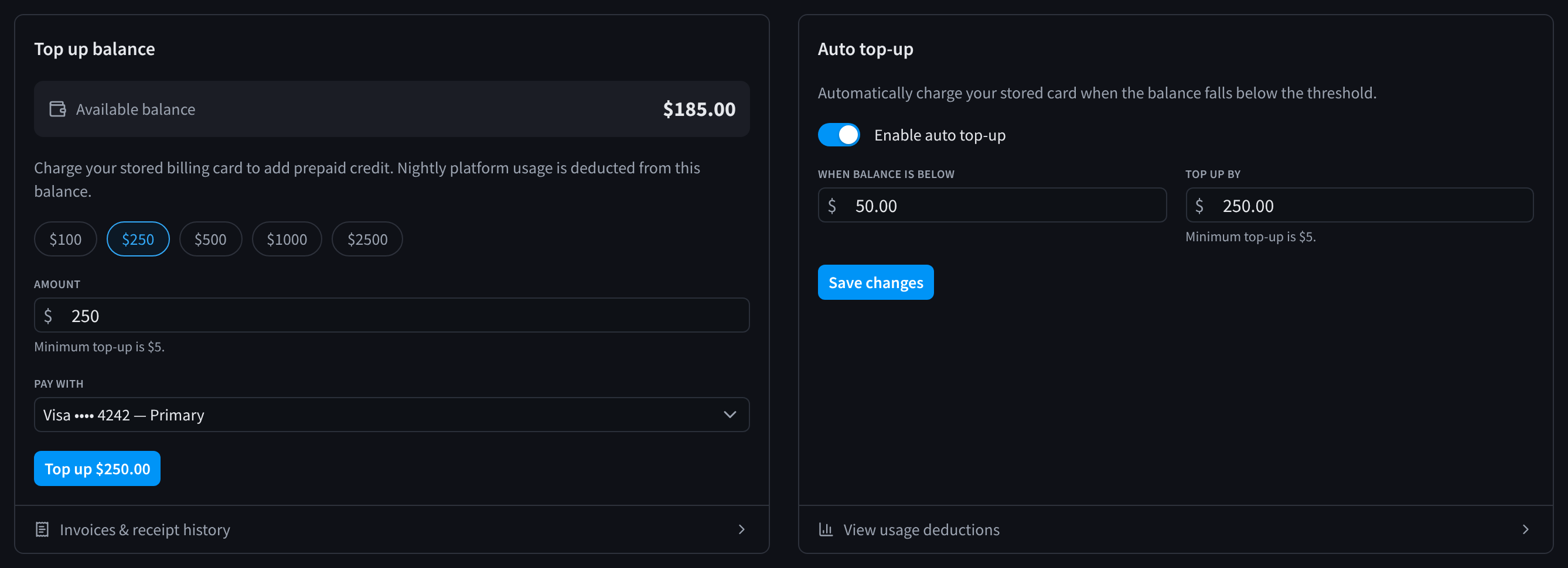
Figure 2: Top up the balance now, or turn on auto top-up
Billing profile
The Billing Profile sets the details on the facility's invoices and who receives them. Click Edit to change them.
- INVOICE ADDRESS: the address printed on invoices.
- INVOICE ENTITY: the business named on invoices.
- NOMINATED SAAS BILLING CONTACTS: the people who get the facility's invoices and budget alerts, for example a practice manager and an accounts officer.
- INVOICE CC EMAILS: other addresses that get a copy of each invoice, for example
accounts-payable@example.com.
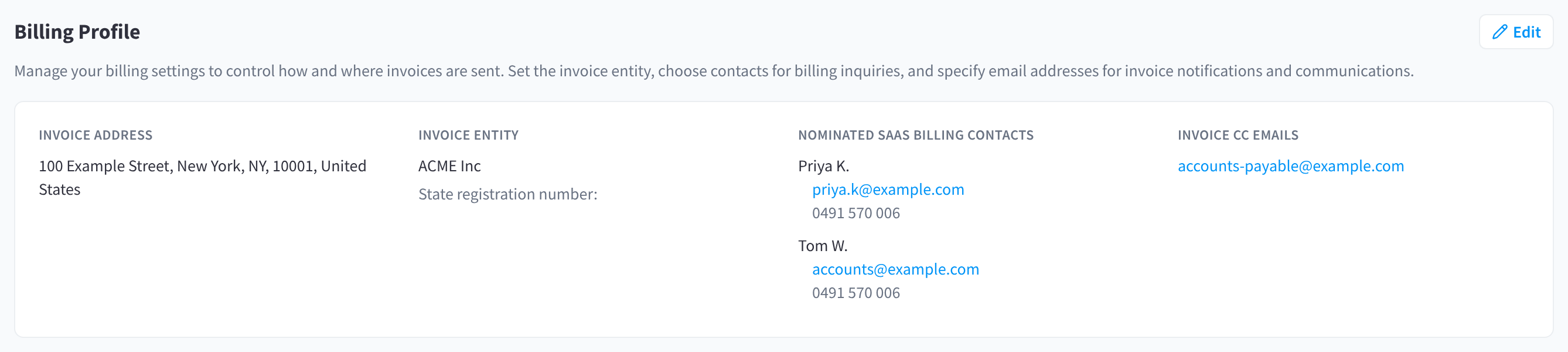
Figure 3: The billing profile: invoice address, invoice entity, billing contacts and CC emails
Settlement method
Whether the facility settles from a prepaid balance or by monthly invoice is set by Performance Hub. Your settlement method is part of your agreement with Performance Hub. To change it, contact Support. See Who pays, and how the bill is settled.
Related pages
- The organisation's Payment Settings: the same settings, shared across the facilities your organisation pays for
- Overview tab & budgets: the balance strip and monthly budget
- Invoices & Receipts: top-up receipts and invoices