
Custom domains and DNS
On this page
A public site is served on ph-sites.com as soon as you put it on the internet. You can also serve it on a domain you own, such as www.example.com or example.org. HTTPS is set up for you. You do not move the domain, and you must not change its nameservers.
You can add up to 6 custom domains on one site. A clinic might use www.example.com for bookings, a hotel events.example.com for a gala, and a retailer both www.example.org and the bare domain example.org.
If you do not manage DNS yourself, skip the record-by-record steps and use Ask the agent to set up DNS, below. You can even ask an Agent to register a domain for you if you need one.
Where the panel is
In the Public site dialog, the panel is headed Add domain / external DNS.
"Use your own domain, like www.example.com, for this site. You need to own the domain and be able to change its DNS records. HTTPS is set up automatically."
On a live site the panel sits under the address, the audience and the password.


Figure 1: Add domain / external DNS on a live site. The ph-sites.com address is the primary address until a domain of your own is connected
With no custom domain yet, the panel shows the current address, an add field and Add domain.


Figure 2: Adding the first domain. The matching www or non-www address can be added with it
Choose www, the bare domain, or both
| Address | When to use it | Record |
|---|---|---|
www.example.com | The usual choice. It leaves the bare domain, and its email, alone | CNAME |
example.com (the bare domain, also called the apex) | You want the address with no www | ALIAS, ANAME, CNAME flattening, or an A record |
| Both | Visitors can use either. Tick Also add the matching www or non-www address | One set of records for each name |
The add field accepts a name or a full URL and tidies it. https://www.Example.com/shop becomes www.example.com. The placeholder reads "example.com or shop.example.com".
Click Add domain.
These names are refused:
- "That domain can't be used." Performance Hub's own domains, and blocked suffixes.
- A name that is not a domain.
- A duplicate on this site.
- "That domain is connected to another site."
The domain stays at the registrar where you bought it. You do not transfer it to Performance Hub, and you do not change the domain's nameservers. Changing nameservers, or deleting the domain's other records, can stop its email.
The records
Each domain card lists the records to add, with a copy button on every value. The names in the table are relative to the domain. If you type the full name into the record name, the DNS host stores a doubled name, such as _ph-sites.example.org.example.org, and the domain never verifies.


Figure 3: www.example.org waiting for DNS. Copy the Type, Name and Value from the card


Figure 4: Copy each value. Do not retype the verification token
| Purpose, as shown in the app | Type | Name | Value |
|---|---|---|---|
| "Proves you own the domain" | TXT | _ph-sites on the bare domain. For www, the card shows _ph-sites with the host under it | ph-sites-verify= followed by the unique token on the card |
| "Points the domain at your site", for a subdomain | CNAME | www, or the subdomain | The site's ph-sites.com address, shown on the card |
| "Points the domain at your site", for the bare domain | ALIAS, ANAME, or a flattened CNAME | @ | The same ph-sites.com address |
| "Use instead of ALIAS if your DNS provider doesn't offer ALIAS, ANAME or CNAME flattening" | A | @ | The address shown on the card. Copy it from the app |
| "Lets the certificate be issued", only when the card shows it | CAA | @ | The record shown on the card. It must allow a public certificate authority |
The token is unique to that domain. If you remove a domain and add it again, it has to be verified with a new token. Copy the token from the card you are looking at. Do not reuse one from an old card or from a screenshot.
Standing text on the card:
- "Add these records where your domain's DNS is managed (usually where you bought the domain). We check automatically every few minutes for 72 hours. DNS changes can take up to an hour to show."
- "Only add these records. Don't change the domain's nameservers or delete its other records, or its email can stop working."
For a bare domain the card also says "Pointing {domain} here replaces any website already on it."


Figure 5: A bare domain. Prefer the ALIAS row. Copy the A record value from the app if your DNS host has no ALIAS, ANAME or flattening
Prefer ALIAS, ANAME or CNAME flattening for the bare domain when the DNS host offers it. An A record does not follow the site if the site later moves. ALIAS, ANAME and flattening do.
Also remove any AAAA (IPv6) records at the same name. The app flags them. If the DNS host has a proxy or traffic-routing switch that would sit in front of the records, turn it off so the records point straight at the site. Use the lowest TTL the host offers, or automatic TTL.
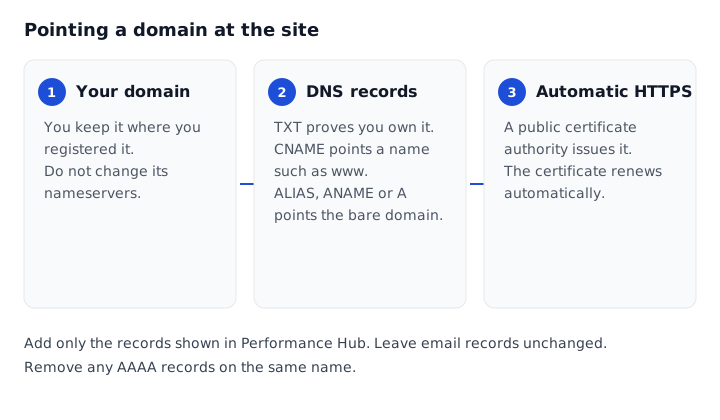
Figure 6: What you add, and what is set up for you. No nameservers change
Add the records where the domain's DNS is managed
The menus differ depending on where the domain's DNS is managed, which is usually where you bought the domain. The steps are the same.
- Open the DNS settings for the domain.
- Add only the records shown in Performance Hub, using the exact Type, Name and Value. Names are relative to the domain.
- Do not change the domain's nameservers, and do not delete or replace its other records. Leave MX and other email records as they are.
- Remove any AAAA records on the same name.
- For the bare domain, use ALIAS, ANAME or CNAME flattening if the host offers it. Otherwise use the A record shown in the app.
- If the host offers a proxy or CDN-style switch on the record, turn it off.
- Save. Wait, up to an hour, or click Check now.
Ask the Agent to set up DNS
Ask the Agent. If you are not the person who edits DNS, click Ask the agent to set up DNS. It opens a new Agent chat titled SET UP DNS FOR A CUSTOM DOMAIN. The Agent can add the records for you. If you do not have a domain yet, you can ask an Agent to register one.
If the Agent needs to sign in where the domain's DNS is managed, that is done on the Agent's computer. You watch, take control to sign in, then hand the computer back. See Your Agent's computer.
Status and timing
A new domain shows Waiting for DNS. When the records are right it becomes Connected. The card shows "Checked {time}".
| Status | What it means |
|---|---|
| Waiting for DNS | The records are not in place yet, or they have not been seen. Checks run every few minutes for 72 hours |
| Connected | The records are in place. They are re-checked every hour |
| Not connected | The 72-hour window passed without valid records. Fix the records and click Check now. Check now still works after the window |
| Disconnected | The records have been missing for 14 days. Add the domain again if you still want it |
DNS changes can take up to an hour to show. A domain that is still on Waiting for DNS after a few minutes is usually still propagating, or one record is wrong. The card lists the problem in red:
- The TXT verification record is missing or has the wrong value.
- The domain doesn't point anywhere yet: add the CNAME (or ALIAS / A) record.
- The domain points somewhere else: change its CNAME (or ALIAS / A) record to the value shown.
- Remove the AAAA (IPv6) records on this name; they send some visitors elsewhere.
- The domain's CAA records don't allow its certificate to be issued: add the CAA record shown.
- The domain's DNS didn't answer. Try again in a few minutes.
- This domain is connected to another site.


Figure 7: The card names each record that is missing or wrong
The primary address
One address is the Primary address. Other addresses redirect to it permanently, and they keep the path, so a link to /book still opens /book.
The ph-sites.com address is primary until a custom domain is connected. If the primary custom domain stops working, the ph-sites.com address becomes primary again on its own.
HTTPS
ph-sites.com addresses are HTTPS from the first moment. A custom domain gets a certificate automatically, usually within a minute or two of connecting, from a public certificate authority. It renews automatically. A renewal warning is sent to the owner 14 days before the current certificate expires.
While it is being issued, the card says "Issuing the HTTPS certificate. This usually takes a minute or two." When it is ready: "HTTPS certificate active, renews automatically (current one valid until {date})". If it cannot be issued: "The HTTPS certificate hasn't been issued yet. Check the domain still points at your site and that no CAA record blocks it."
HTTP is redirected to HTTPS. HSTS is applied: a year on the ph-sites.com addresses, and a shorter period on a custom domain.
If the card asks for a CAA record, add the record it shows. The record must allow a public certificate authority. Do not add a CAA record that names only some other authority, or the certificate cannot be issued.
Remove a domain
Remove asks "Remove {domain}? Visitors using it will no longer reach this site." Click Remove to confirm, or Cancel to keep it.


Figure 8: Removing a domain stops it reaching this site. The domain itself stays at your registrar
Removing a domain does not delete it at the registrar, and it does not change nameservers. Visitors using that name stop reaching this site. To use the same domain on a different site, remove it here first. A domain that is still connected is refused with "That domain is connected to another site."
Related pages
- Publish your first site
- Managing sites
- Troubleshooting
- Your Agent's computer: Take Control and Hand Back
- Security and isolation